
Blog
Apple Watch Rest Timer: 3 Ways to Time Rest Between Sets
Published November 11, 2026 · 14 min read
Yes, an Apple Watch can time your rest between sets, and you have three built-in ways to do it: the Timers app, Segments inside a Workout, and a Custom Workout with Work and Recovery intervals. The Timers app is the fastest to learn, Segments keep rest inside one continuous workout, and custom intervals suit circuits and timed blocks better than heavy sets of varying length.
This guide covers how each method works on the watch, where each one gets in the way during a real lifting session, and the settings that stop the countdown from disappearing when you drop your wrist. It does not tell you how long to rest, because that depends on the lift, the load and your goal. It is about the mechanics: getting a timer in front of you with the fewest taps.
TL;DR
- Timers app: open Timers, pick a preset or a custom duration, tap Start. It is quick, but it runs separately from your workout.
- Segments: double-tap the display during a Workout to mark a segment, so each rest can be its own block in the same session.
- Custom Workout: build Work and Recovery intervals under More (...) > Custom. Best for circuits, EMOMs and conditioning, less so for sets that take different amounts of time.
- Make it visible: turn on Haptic Alerts and set the watch to return to your workout app, so you feel the end of rest without looking.
- Want more than a clock? A lifting app that logs each set on the watch gives the rest period something to be about.
Table of Contents
- Which Apple Watch rest timer fits your training
- Method 1: the Timers app
- Method 2: Workout Segments
- Method 3: custom interval workouts
- Settings that make the timer usable mid-set
- What a timer cannot do for you
- What to look for in an Apple Watch gym app
- Pairing rest timing with set logging
- A simple rest routine to try this week
- FAQ
- Sources
Which Apple Watch rest timer fits your training
The right method depends on how structured your sets are. A lifter doing straight sets of a heavy compound lift with a consistent rest wants a timer that takes one or two taps. A lifter running circuits wants the watch to run the sequence on its own. Someone who just wants a record of how long they sat between sets wants Segments.
| Method | Setup effort | Best for | Main limit |
|---|---|---|---|
| Timers app | Low | Straight sets with a fixed rest | Runs apart from the workout; you restart it every set |
| Workout Segments | Low | Reviewing rest and work in one session | Marks time; does not count down for you |
| Custom Workout intervals | Medium | Circuits, EMOMs, timed work and rest | Fixed intervals, so awkward when set length varies |
None of these is wrong. Plenty of lifters use two at once: a Workout running for heart rate and active calories, with the Timers app launched for each rest.
Method 1: the Timers app
Apple's own guide says you can start a timer by choosing a duration or creating a custom one and tapping Start, and that you can pause, resume or end it from the Timers screen (Apple Support: Set timers on Apple Watch).
For a rest you use more than once, the steps are:
- Open the Timers app on your watch.
- Tap one of the preset durations, or scroll down and tap the custom timer button.
- Turn the Digital Crown to set hours, minutes and seconds.
- Tap Start.
The custom timer is the one to learn. Presets are built for kitchen use, so a rest of two minutes thirty is a custom entry. Once you have used a duration, it appears in your recent timers, so the next set is usually one tap rather than a trip through the Crown.
Starting a timer with Siri
Apple notes that Siri can also set a timer (Apple Support). Raising your wrist and speaking a duration works when you are re-racking a bar and your hands are chalky. In a loud gym, speech recognition can misfire, so treat it as a convenience and keep the tap method as your reliable one.
What to watch for in practice
- Timing the start: start the timer the moment you rack the bar, not when you sit down. Anything else makes your rests drift longer as the session goes on.
- Two clocks: if a Workout is running, your elapsed time continues separately from the timer. That is fine, but do not mistake the timer for a workout pause.
- One timer at a time: the habit that makes this work is the same for every set, so pick one rest per lift type and reuse it.
Method 2: Workout Segments
Segments are the lesser-known option. In the Workout app, you turn the Digital Crown to a workout type such as Functional Strength Training and tap to start. During the session, Apple says you can swipe right to pause or mark a segment, or double-tap the display to mark a segment (Apple Support: Start a workout on Apple Watch).
A segment does not count down for you. What it does is split the session into labeled chunks, so after the workout you can see where the time went. The practical routine is:
- Start a Functional Strength Training workout (or the strength category that matches your session).
- Finish a set and double-tap the display to mark the start of rest.
- Double-tap again when you start the next set.
That gives you a record of rests with no extra app. It also teaches you something quickly: most lifters find their "two minutes" is a lot closer to four when they check it against the clock. That observation is common gym experience rather than a research finding, but it explains why people who track rest tend to tighten up.
If you want the full walkthrough of the strength workout type, including what Apple records during it, see our page on functional strength training on Apple Watch.
Combining Segments with the Timers app
Segments mark the past; Timers handle the future. Many lifters use both: start a workout, then launch a timer after each set. The cost is two taps per set instead of one, and the payoff is a countdown plus a workout record of when you actually moved.
Method 3: custom interval workouts
The watch can also run a structured sequence. According to Apple, you choose an activity in Workout, open More (...), tap Custom, and add Work and Recovery intervals using a time, a distance or an open goal where the activity supports it. You can add a warmup or cooldown, name the workout and create it, and the Up Next display shows what remains in the current interval and what follows (Apple Support: Create a Custom Workout on Apple Watch).
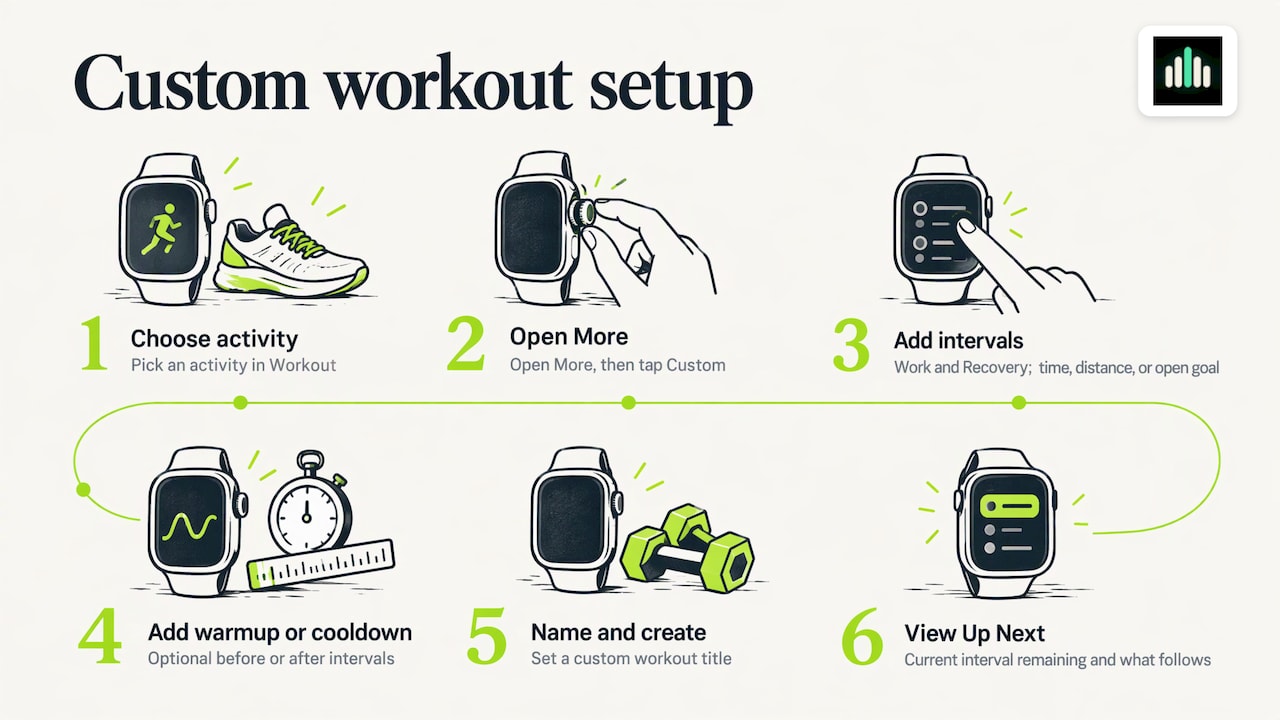
The options vary by activity. The Verge's walkthrough notes that outdoor running offers open, distance or time intervals, while HIIT offers open or time, that you program these on the watch, and that you can set how many times intervals repeat before an optional cooldown and a custom title (The Verge: How to create custom Apple Watch interval workouts). That article is from 2022, so confirm the menu on your own watchOS version.
When intervals suit lifting
- Circuits: 40 seconds of work, 20 of recovery, repeated across stations.
- EMOM-style blocks: a fixed window that repeats, with whatever rest is left after the reps.
- Conditioning finishers: sled pushes, carries or rowing after the main lifts.
- Mobility and warm-up flows: timed holds with short recovery.
It suits heavy straight sets poorly. A set of five squats takes a different time on each set as fatigue builds, and a fixed Work interval either cuts you off or leaves you waiting. For that kind of training a Work interval set to an open goal, or a plain rest timer, is the better pairing.
Settings that make the timer usable mid-set
A timer you cannot see or feel is just a number on a dark screen. A few settings decide whether it works in a noisy, sweaty gym.
Turn on haptics
Apple Community guidance for a watch whose timer stopped vibrating is to open Settings, tap Sounds & Haptics, and make sure Haptic Alerts are on. Choosing Prominent adds an extra tap that pre-announces some alerts (Apple Community: Timer no longer vibrates). For rest timers, this matters more than the sound, since earbuds, music and gym noise drown out a beep.
Keep the right app on screen
By default the watch may drop back to the clock when you lower your wrist. In the Watch app on your iPhone, the General settings include a Return to Clock option, and you can have the watch go back to the app you were using for longer after you lower your wrist. Apple Community answers on this topic point to the Return to App behavior for apps built like the stock Workout app (Apple Community: Apple Watch apps). If your countdown keeps vanishing between sets, start there.
Mind the display size and fit
Between sets you read the watch at arm's length, often at an angle, with chalk or sweat on the glass. A larger case gives you bigger digits, and a snug strap keeps the screen where you expect it. If you are choosing a watch mainly for the gym, a refurbished Apple Watch Ultra 2 in the 49mm case is one option to weigh, and this watch case size guide helps you match case size to your wrist. Neither is required: the timer features above work on whichever supported watch you already own.
Quick fixes for common problems
- Timer ends with no feeling: recheck Haptic Alerts and Silent Mode.
- Countdown disappears: adjust Return to App or Return to Clock in the Watch app.
- Segments do not register: double-tap the display, not the Digital Crown, and confirm a workout is actually running.
- Heart rate looks off during rest: wrist position and strap tightness change readings; snug it a notch for lifting.
What a timer cannot do for you
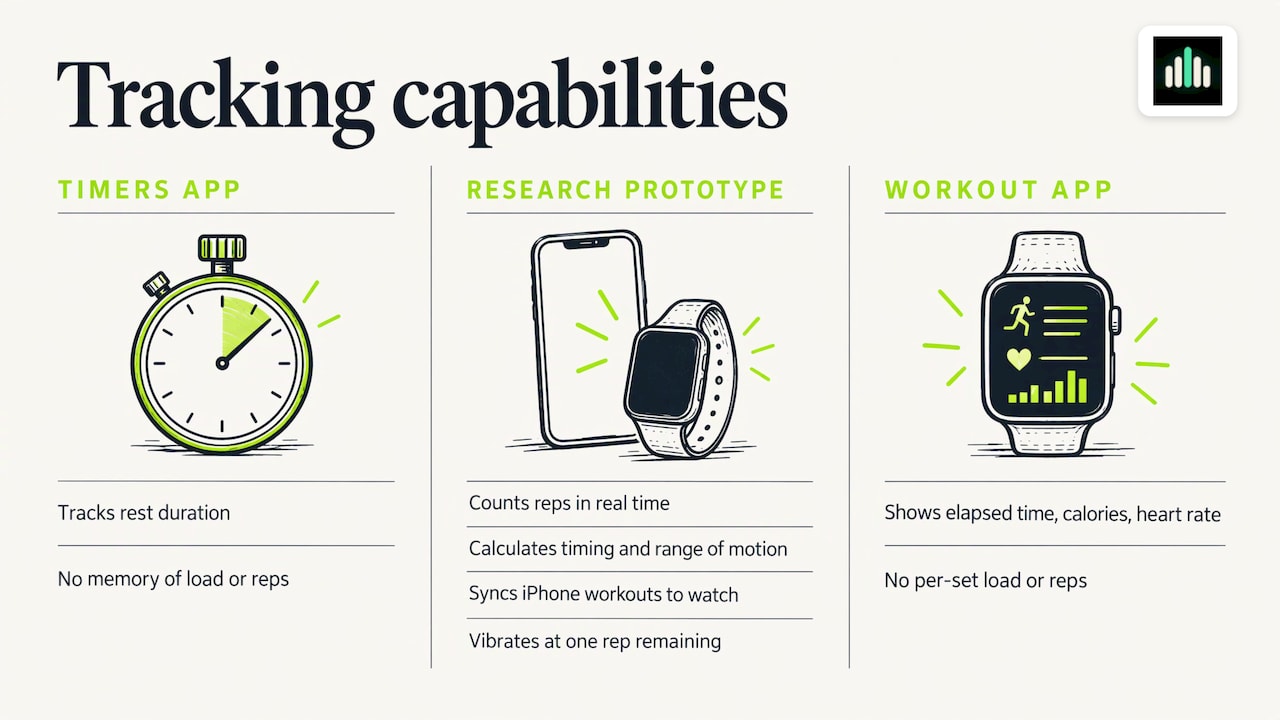
A rest timer solves one problem: how long you sat. It does not tell you what you lifted, how hard the set was, or what to load next. Those are the questions that decide whether your training progresses, and a timer in the Timers app has no memory of them.
That is where a logging app on the watch earns its place. Research on resistance training with a phone and watch pair shows what is technically possible. A peer-reviewed study in Sensors describes an iPhone app with an optional Apple Watch app that can count repetitions in real time and calculate repetition timing, concentric and eccentric timing, and range of motion for selected exercises. The authors also report that workouts created on the iPhone sync to the watch and that their prototype gave feedback such as a vibration when one repetition remained for selected exercises (LEAN study, PMC). That is a research prototype, not a product you can download, but it shows why wrist-based logging is more than a stopwatch.
Apple's stock Workout app supports strength-based workout categories and shows elapsed time, calories and heart rate (Apple Support). Useful, but it is not built to record load and reps for each set. If you want to compare the types of apps that fill that gap, our guide to choosing a workout app for Apple Watch by what you need to log lays out the criteria.
What to look for in an Apple Watch gym app
No research source ranks gym apps, so this is practice rather than evidence: the checklist lifters tend to land on after a few months of using a watch in the gym.
- Set logging on the wrist. Weight, reps and effort entered in a few taps, without pulling out your phone.
- Standalone use. The watch should work for a session even if your phone stays in the locker.
- A rest alert you can feel. Haptics, not only sound.
- A plan that follows you. Today's exercises and targets on the watch, not a blank screen.
- Immediate feedback. A suggested load for the next set or session, based on what you logged.
- Exports and Apple Health. Your data should leave the app when you do.
- Low friction. Every extra tap between sets is a tap you will eventually skip.
The seventh item is the one that decides habits. A feature that takes five taps is a feature you use for two weeks.
Pairing rest timing with set logging
If you want the watch to handle both the clock and the record, RIRLift is built for logging every set on iPhone and Apple Watch, including weight, reps and reps in reserve (RIR), which is how many more reps you could have done when you stopped the set. Its AI Coach analyzes your logged sessions and recommends the next load, and you can use the watch on its own for a workout if you prefer to leave your phone behind. See how it works on our Apple Watch workout tracker for lifting page.
The free plan covers core logging. RIRLift Pro is $9.99 per month or $79.99 per year and unlocks advanced coaching, analytics, unlimited routines and customization.
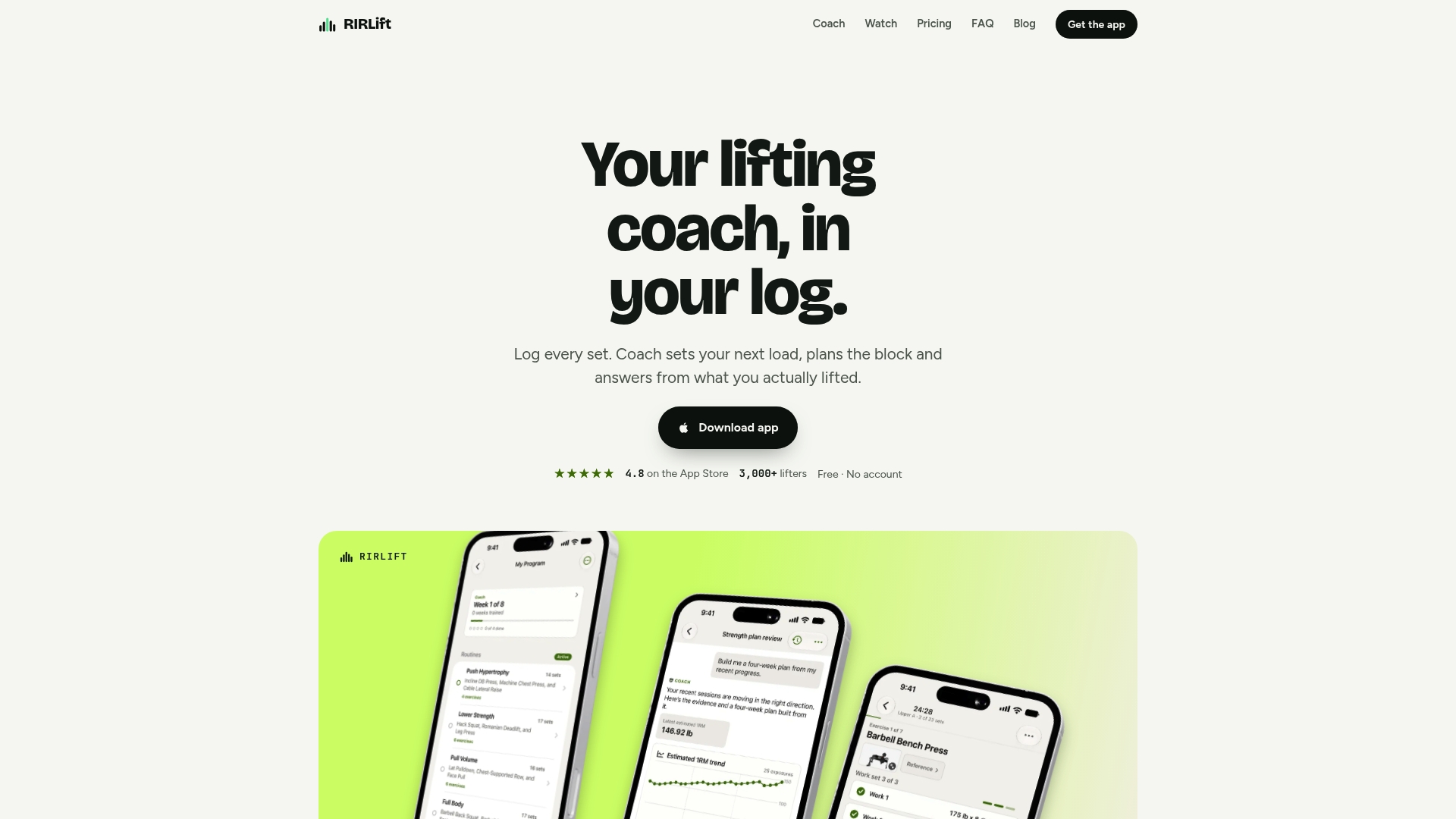
You can start on the free plan and move to Pro if you want Coach to plan your training blocks; both are on the RIRLift home page.
A simple rest routine to try this week
You do not need a perfect system. Choose one method and run it for a full week so you can see what it tells you.
- Pick the method. Timers for fixed straight sets, Segments for a record, Custom intervals for circuits.
- Set one rest per lift type. Keep it the same across sets so the data means something. Choosing the duration itself is a separate question that depends on your goal and the lift.
- Turn on Prominent haptics and set Return to App or Return to Clock to match your habits.
- Start the clock at the rack, not at the bench.
- Review after the session. If you used Segments, scroll through the marks. If you used Timers, note how often you started late or ended early.
If you are building out the rest of your gym week on the watch, our Apple Watch gym workout page has three full sessions to copy, and the Apple Watch training load page explains how the watch reflects strength work over time.
FAQ
Can an Apple Watch do an interval timer?
Yes. In the Workout app, choose an activity, tap More (...), tap Custom, and add Work and Recovery intervals using time, distance or an open goal where the activity offers them. Apple's guide says you can also add a warmup and cooldown and name the workout. The Up Next display shows the current interval and what follows (Apple Support).
How do I stop my Apple Watch from turning off so fast?
The watch dims or returns to the clock when you lower your wrist. In the Watch app on your iPhone, adjust the Return to Clock or Return to App behavior so it stays on your workout or timer longer. Apple Community answers point to Return to App as the key setting for apps built like the stock Workout app (Apple Community).
Can I use the Timers app while a workout is running?
Yes, you can start a timer from the Timers app and keep your workout going, and Siri can set one hands-free (Apple Support). The two run separately, so you restart the timer for each rest. If that gets tedious, use Segments to mark rests instead.
What is the quickest way to mark rest in a strength workout?
Start a strength-type Workout, then double-tap the display to mark a segment after each set. Apple lists double-tap as one way to mark a segment, alongside swiping right for the pause and segment options (Apple Support). It is the lowest-effort way to record how long you rested.
Sources
- Apple Support: Set timers on Apple Watch
- Apple Support: Start a workout on Apple Watch
- Apple Support: Create a Custom Workout on Apple Watch
- The Verge: How to create custom Apple Watch interval workouts
- LEAN: Real-Time Analysis of Resistance Training, Sensors (PMC)
- Apple Community: Timer no longer vibrates
- Apple Community: Apple Watch apps